Install in LiquidBounce
Run this command in-game to subscribe and receive updates automatically.
.marketplace subscribe 835Screenshots
4 screenshots
About
Celestial
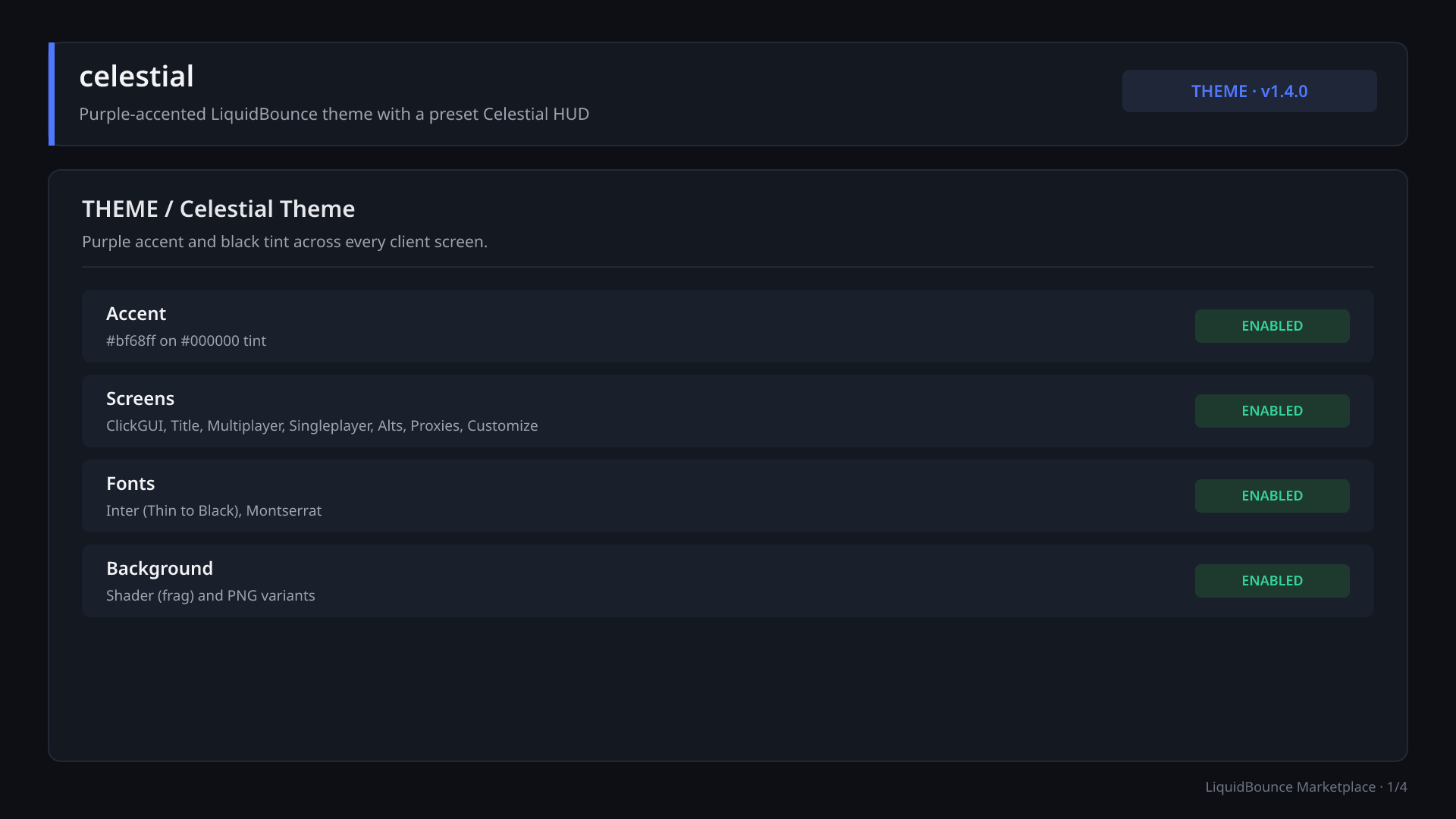
Celestial (version 1.4.0) is a theme for LiquidBounce Nextgen built on the default CCBlueX theme base. It recolors the ClickGUI, menus, and in-game HUD with a purple accent (#bf68ff) on a black tint, and uses its own Celestial surfaces, gradients, glow, and a menu wallpaper. It also ships a preset HUD layout: a Celestial watermark, the module ArrayList, key bindings, armor, effects, a target HUD, and a coordinates/BPS/FPS line are on by default.
Theme overview
| Property | Value |
|---|---|
| Theme ID | celestial |
| Accent color | #bf68ff |
| Tint color | #000000 |
| Fonts | Inter (Thin to Black), Montserrat |
| Background | background (shader frag and png variants) |
| Authors | Celestial visual resources, CCBlueX (theme base) |
The stylesheet has an animated gradient mode (celestial-palette-flow) and a rainbow hue mode (celestial-rainbow-flow). The archive does not show how these modes are turned on.
Screens
The theme provides these screens:
- ClickGUI (
clickgui) - Title screen (
title) - Proxy Manager (
proxymanager) - Multiplayer (
multiplayer) - Alt Manager (
altmanager) - Customize (
customize) - Singleplayer (
singleplayer)
Overlays
basicmenuhudinventorycontainerdisconnectedbrowser
HUD components
The default state and position come from the component files in components/. You can move, enable, or disable every component in the in-game HUD editor.
Enabled by default
Watermark (top left, offset 10/10)
- The Celestial watermark.
UID(text, default1). This is a cosmetic label only. It is not a LiquidBounce account ID.
ArrayList (top right, offset 6/6)
- Lists your enabled modules.
ShowTags(boolean, default on)ItemAlignment(Left / Right, default Right)Order(Ascending / Descending, default Descending)
KeyBinds (top left, offset 10/90)
- Lists module key bindings. No settings.
Effects (left, vertically centered, offset 8)
- Shows your active status effects and hides the vanilla status effect overlay.
ArmorItems (bottom center, offset 212/8)
- Shows your equipped armor.
Layout(Vertical / Horizontal, default Horizontal)
TargetHud (center, offset 20)
- Shows combat info about your current target.
Style(Bar / Ring, default Bar)
Text (bottom left, offset 6/8, you can add more than one)
- A Celestial info line. Default text:
XYZ: {blockPosition.x} {blockPosition.y} {blockPosition.z} | BPS: {bps} | FPS: {fps} Color(default white)Font(defaultCelestial)Size(1 to 100 px, default 17)Decorations: Bold, Italic, Underline, Strikethrough (all off by default)Shadow(on by default): OffsetX 1, OffsetY 1, BlurRadius 0, Color blackGlow(off by default): Radius 0, Color white
Disabled by default
TabGui (top left, offset 15/90)
- Lets you browse modules with the keyboard.
Notifications (bottom right, offset 15/5)
- Shows client notifications.
Severities(multi-select: INFO, SUCCESS, ERROR, ENABLED, DISABLED; all selected; at least one must stay selected)
Hotbar (bottom center, offset 15)
- Replaces the vanilla hotbar and status display. It hides the vanilla status bar, XP bar, held item tooltip, overlay message, and locator bar.
Scoreboard (left, vertically centered, offset 15)
- Shows the server scoreboard instead of the vanilla one.
Show(multi-select: Header, Name, Score; all selected)ReplaceRegex(text, empty)ReplaceWith(text, empty)
InventoryStatistics (bottom center, offset 220/15)
- Counts chosen items in your inventory.
Items(default: emerald, diamond, gold ingot, iron ingot, copper ingot)ShowEmpty(boolean, default on)RowLength(1 to 9, default 1)
Inventory (bottom right, offset 35/35)
- Shows your main inventory.
EnderChestInventory (bottom right, offset 35/170)
- Shows your Ender Chest contents.
CraftingInventory (bottom right, offset 35/305)
- Shows your crafting grid.
BlockCounter (center, offset -20)
- Shows how many blocks you have for bridging.
IconPosition(None / Left / Right / Top / Bottom, default Left)
Keystrokes (bottom left, offset 15/15)
- Shows your movement key presses.
Image (screen center, you can add more than one)
- Shows an image from a URL or a local file.
Source: URL (defaulthttps://liquidbounce.net/images/logos/logo.svg) or File (png, jpg, jpeg, webp, gif, svg)Scale(0.0 to 10.0, default 1.0)Opacity(0 to 100 %, default 100)
ClosedCaptions (bottom right, offset 2/40)
- Shows Minecraft closed captions and hides the vanilla subtitle overlay. Turn on captions in Minecraft under Settings, Accessibility Settings, Closed Captions.
Taco
- Shows a taco.
Installation
- Install the theme from the LiquidBounce Marketplace in the client.
- Pick
Celestialas your active theme in the client's theme settings. - Open the HUD editor to move components or turn them on and off.
Credits
- Theme base by CCBlueX.
- Circle flag icons from circle-flags (MIT License), using the CCBlueX fork.
Versions
1 release, newest first.
File details & build provenance
- Name
- Celestial-Theme-v1.4.zip
- SHA-256
- 6af946f379d2dea57adf5a5951ed024ef6e889fdcb9fac174de4acec5a55709b
Details
- Type
- Theme
- Latest
- v1.4.0
- Downloads
- 15
- Versions
- 1 uploaded
- Created
- Oct 17, 2026
- Updated
- Oct 17, 2026