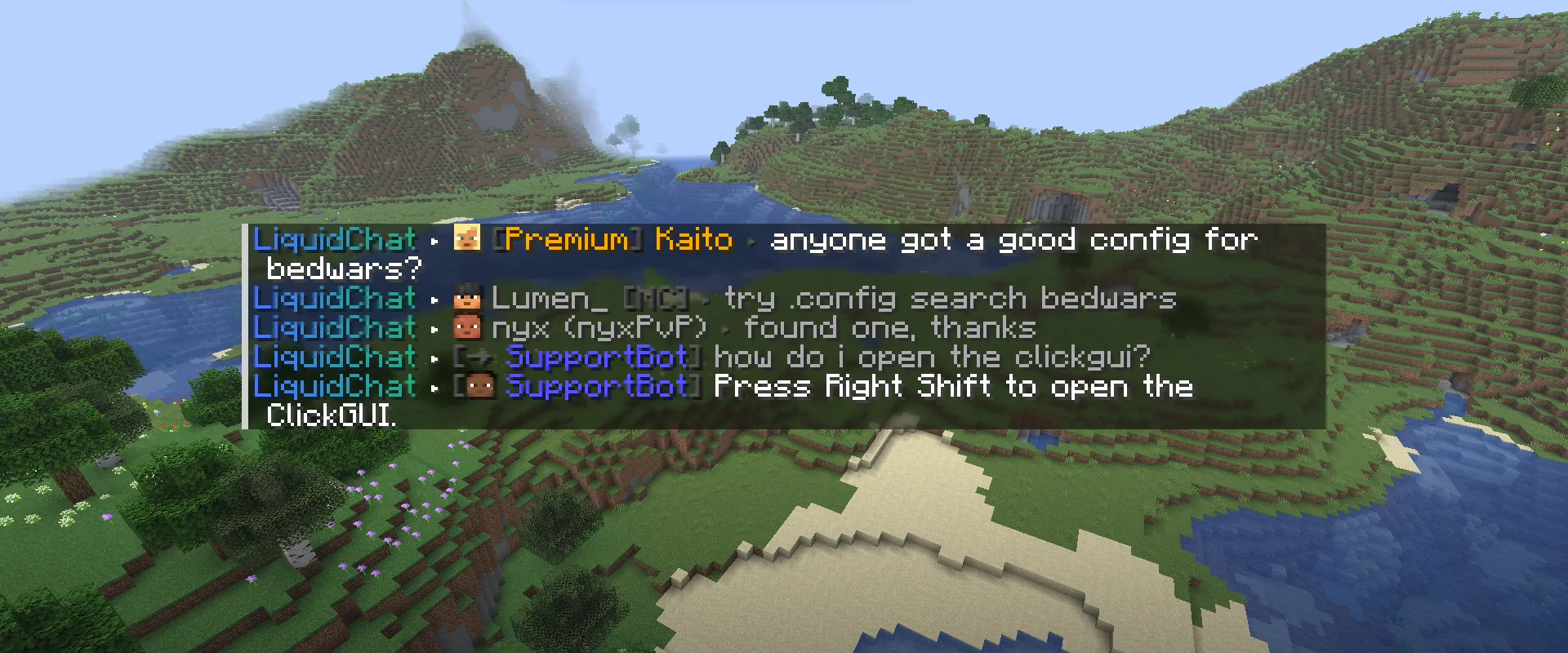
LiquidBounce 0.43.0 talks to a new LiquidChat. We rewrote the chat server for it, and you now chat as your LiquidBounce account, with your role right next to your name.
Your account in chat
Log in once with .client account login and LiquidChat uses your account from then on. If you play on a premium Minecraft account with a different name, that name shows in parentheses after yours. Staff show up in red and Premium members in gold.
You can still chat without a LiquidBounce account, as long as your Minecraft account is premium. Your name is gray then, with [MC] behind it.
Messages and reports
Click a name in chat to message or report that player, or use these commands:
| You want to | Type |
|---|---|
| Write to everyone | .chat and your message |
| Message someone | .lc msg, their name and your message |
| Report someone | .lc report, their name and what happened |
| Ask SupportBot | .lc msg SupportBot and your question |
Direct messages work between LiquidBounce accounts. If you don't want any, turn off AllowMessages under Client Chat in the ClickGUI settings. A report reaches our staff along with the last message you saw from that player.
SupportBot
Our support bot hangs out in LiquidChat now. Ask it about the client and it answers after a few seconds, even if you're on a Minecraft login. When someone asks a simple question in global chat, it may answer them by direct message, so global doesn't fill up with bot replies.
Keeping it clean
A filter checks global chat. If it catches a message, the message disappears from everyone's chat and the sender gets a short mute. Mutes and bans now tell you why and when they end.
Older versions still connect, but you need 0.43.0 for all of this. Every setting is on the Client Chat page of our docs. Tell us on Discord what you'd like to see in LiquidChat next.